Copyright © 2014 Developed by Shubham Gupta. Powered by Blogger.
Showing posts with label social media. Show all posts

Wednesday, 16 July 2014

You can now crop and rotate your photos right within the Twitter app, starting with Android

Twitter is putting more focus on visual images as it’s making it easier for you to take photos, then crop them by selecting an aspect such as square or wide, or even rotate it — all within its mobile app.
The new features are available today on Twitter for Android, and will be “coming soon” to Twitter for iPhone.
Twitter is also prompting you to interact with your friends through the uploading of photos. Now when you upload a photo with people in it, you will see a reminder to @ mention your friends.
You can now crop and rotate your photos right within the Twitter app, starting with Android

The latest update for Twitter’s Android app also makes it easier for you to discover events and trends that people are talking about on Twitter. This means if you refresh your home timeline and there are no new tweets to load, you may see recommended tweets, trending topics and suggested new accounts that you can follow. In the US, you will also see TV, sports and news updates.
You can now crop and rotate your photos right within the Twitter app, starting with Android

Twitter has been steadily moving away from a stream full of condensed text and toward a richer multimedia format, making the user experience a lot more visually interesting as it competes with services like Instagram. As part of this significant shift, Twitter made a move last year to introduce inline images – and this latest update to its app is no doubt an additional useful feature for more convenience in uploading photos directly to Twitter.
twitter

You can now crop and rotate your photos right within the Twitter app, starting with Android

Posted by Author  |  No comments

You can now crop and rotate your photos right within the Twitter app, starting with Android

Twitter is putting more focus on visual images as it’s making it easier for you to take photos, then crop them by selecting an aspect such as square or wide, or even rotate it — all within its mobile app.
The new features are available today on Twitter for Android, and will be “coming soon” to Twitter for iPhone.
Twitter is also prompting you to interact with your friends through the uploading of photos. Now when you upload a photo with people in it, you will see a reminder to @ mention your friends.
You can now crop and rotate your photos right within the Twitter app, starting with Android

The latest update for Twitter’s Android app also makes it easier for you to discover events and trends that people are talking about on Twitter. This means if you refresh your home timeline and there are no new tweets to load, you may see recommended tweets, trending topics and suggested new accounts that you can follow. In the US, you will also see TV, sports and news updates.
You can now crop and rotate your photos right within the Twitter app, starting with Android

Twitter has been steadily moving away from a stream full of condensed text and toward a richer multimedia format, making the user experience a lot more visually interesting as it competes with services like Instagram. As part of this significant shift, Twitter made a move last year to introduce inline images – and this latest update to its app is no doubt an additional useful feature for more convenience in uploading photos directly to Twitter.

Wednesday, July 16, 2014 Share:

Saturday, 22 March 2014

Trick To Send Facebook Messages Via Email

Hello friends i don’t know why this week my mind only talk about Facebook and Facebook tricks.


And in today’s post i share a trick to send messages via Email (Gmail,Yahoo,Etc).You know why this trick comes in mind.

The reason is when i am in college.Our college doesn't allow us to use Facebook in college.So to access Facebook or To chat with friends in Facebook we used proxy websites.Or when these proxy websites doesn't work in college we take help from or Gmail account to send messages to our Facebook friend or Girlfriend.
–>
Sorry for disturb in between the post i tel you one thing secret is i used this trick to chat with my Girlfriend.

So How To Send Facebook Messages Via Email:

Step 1:
Open the profile to whom you want to send the message.And see in the address bar.Copy the part of URL shown in the figure.
 Send Facebook Messages Via Email
Step 2:
Now copy that name and the email address of that person is: name@facebook.com. Like in above example sgshubhamgupta398@facebook.com.
Step 3:
Now open your Email account(Gmail,Yahoo etc.).And then compose mail.in “To” section write the email address u generated and send the message.Done.
The person get the message immediately.And get a notification like “Sent From Mail”. 
social media

Trick To Send Facebook Messages Via Email

Posted by Author  |  No comments

Trick To Send Facebook Messages Via Email

Hello friends i don’t know why this week my mind only talk about Facebook and Facebook tricks.


And in today’s post i share a trick to send messages via Email (Gmail,Yahoo,Etc).You know why this trick comes in mind.

The reason is when i am in college.Our college doesn't allow us to use Facebook in college.So to access Facebook or To chat with friends in Facebook we used proxy websites.Or when these proxy websites doesn't work in college we take help from or Gmail account to send messages to our Facebook friend or Girlfriend.
–>
Sorry for disturb in between the post i tel you one thing secret is i used this trick to chat with my Girlfriend.

So How To Send Facebook Messages Via Email:

Step 1:
Open the profile to whom you want to send the message.And see in the address bar.Copy the part of URL shown in the figure.
 Send Facebook Messages Via Email
Step 2:
Now copy that name and the email address of that person is: name@facebook.com. Like in above example sgshubhamgupta398@facebook.com.
Step 3:
Now open your Email account(Gmail,Yahoo etc.).And then compose mail.in “To” section write the email address u generated and send the message.Done.
The person get the message immediately.And get a notification like “Sent From Mail”. 

Saturday, March 22, 2014 Share:
How To Have Your First Name Only On Facebook

Hello friends we all used Facebook. And we all know that Facebook doesn't allow us to write our name in Facebook profile without last name.
If you are searching for a trick which allow us to Write First Name Only in Facebook profile.Then you are in right place.
Because in today’s article i will teach you to enable your first name only in Facebook profile.
Steps To Enable Your First Name Only On Facebook:

Thing’s you will need to enable:-
1. A Brain
2. Mozilla Firefox
3. Little Common Sense
I think you have all the above resources.So without wasting your time lets start with today’s trick.
Step 1: 
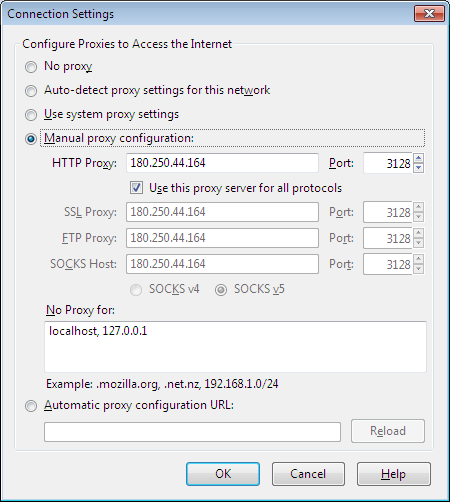
Open Mozilla Firefox. Go to Settings->Network->Configure How Firefox Connect To The Internet(Settings).A window will be appear as shown below.
How To Have Your First Name Only On Facebook
Step 2:
Now tick to the (Use this proxy server for all protocols).Now its time to add proxy address.Here i tell you that we will add Indonesia proxy address (180.250.44.164 Port:3128). As shown in the above screenshot.If this proxy address doesn't work or it is very slow then use any other proxy address which is from Indonesia(Search on Google there are many websites which give you Indonesia proxy address).

Step 3:
After Step 2 click on OK. And now open Facebook.com.And go to Account Settings.Here you will see a Language option.Change the language to “bahasha Indonesia”.

Step 4:
Now its time to enter your first name and save it without enter last name.Done now your Facebook profile shows your first name only.
social media

How To Have Your First Name Only On Facebook

Posted by Author  |  No comments

How To Have Your First Name Only On Facebook

Hello friends we all used Facebook. And we all know that Facebook doesn't allow us to write our name in Facebook profile without last name.
If you are searching for a trick which allow us to Write First Name Only in Facebook profile.Then you are in right place.
Because in today’s article i will teach you to enable your first name only in Facebook profile.
Steps To Enable Your First Name Only On Facebook:

Thing’s you will need to enable:-
1. A Brain
2. Mozilla Firefox
3. Little Common Sense
I think you have all the above resources.So without wasting your time lets start with today’s trick.
Step 1: 
Open Mozilla Firefox. Go to Settings->Network->Configure How Firefox Connect To The Internet(Settings).A window will be appear as shown below.
How To Have Your First Name Only On Facebook
Step 2:
Now tick to the (Use this proxy server for all protocols).Now its time to add proxy address.Here i tell you that we will add Indonesia proxy address (180.250.44.164 Port:3128). As shown in the above screenshot.If this proxy address doesn't work or it is very slow then use any other proxy address which is from Indonesia(Search on Google there are many websites which give you Indonesia proxy address).

Step 3:
After Step 2 click on OK. And now open Facebook.com.And go to Account Settings.Here you will see a Language option.Change the language to “bahasha Indonesia”.

Step 4:
Now its time to enter your first name and save it without enter last name.Done now your Facebook profile shows your first name only.

Saturday, March 22, 2014 Share:
Top 10+ Reason for getting Blocked in Facebook
Friends,

Some times we get blocked by Facebook and we don’t understand that why it has happened or even would've happened with your friends. So, today i’m gonna share  few reasons that why your Facebook account get block, so that you can avoid those stuffs  next time.

Top 10+ Reason for getting Blocked in Facebook


1. If you didn't
 use your real name,face book will find you and block you out.

2. If you joined too many groups.(The maximum limit is 200 groups per user.)

3. If you posted too many messages on a wall or in a group.

4. If you  posted in too many groups,too many user’s walls. (That’s what spammers do,silly.)

5. If you friend-ed too many people.(Not so long ago this was a prime cause of disabled accounts, but Facebook has allowed a maximum of 5000 friends that should protect you from yourself.)

6. If you school/ organization affiliation is doubtful.

7. If you’re poking too many people (Beware the odd FB app that pokes on your behalf.)

8. If you advertised your app on wall posts.

9. If you used duplicate text in multiple messages.

10. If you are under 18 years old and not part of a High School group.

11. If you wrote offensive content.

12. You scraped information off Facebook.
social media

Top 10+ Reason for getting Blocked in Facebook

Posted by Author  |  No comments

Top 10+ Reason for getting Blocked in Facebook
Friends,

Some times we get blocked by Facebook and we don’t understand that why it has happened or even would've happened with your friends. So, today i’m gonna share  few reasons that why your Facebook account get block, so that you can avoid those stuffs  next time.

Top 10+ Reason for getting Blocked in Facebook


1. If you didn't
 use your real name,face book will find you and block you out.

2. If you joined too many groups.(The maximum limit is 200 groups per user.)

3. If you posted too many messages on a wall or in a group.

4. If you  posted in too many groups,too many user’s walls. (That’s what spammers do,silly.)

5. If you friend-ed too many people.(Not so long ago this was a prime cause of disabled accounts, but Facebook has allowed a maximum of 5000 friends that should protect you from yourself.)

6. If you school/ organization affiliation is doubtful.

7. If you’re poking too many people (Beware the odd FB app that pokes on your behalf.)

8. If you advertised your app on wall posts.

9. If you used duplicate text in multiple messages.

10. If you are under 18 years old and not part of a High School group.

11. If you wrote offensive content.

12. You scraped information off Facebook.

Saturday, March 22, 2014 Share:
Proudly Powered by Blogger.
back to top